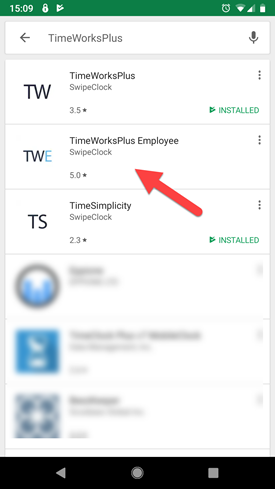
The mobile app is listed as
"TimeWorksPlus Employee."
Install TimeWorksPlus Employee
The mobile app can be found in both the iPhone and Google Play stores by searching "TimeWorksPlus Employee". However, your employer may be using our legacy app, "TimeWorksPlus". Check with your employer if you are unsure of which app to install.
If you have not already done so, you should reset your initial password on the employee portal before logging into the app.
Once you download and install the app, use the same login and password that you use for the TimeWorksPlus employee portal.
If you are unable to log in, please see the topic If You are Unable to Log In later in this article.
Site ID Field
The Site ID field may appear after entering your login credentials and is required in situations where your employer's company number is needed to identify your account. You can find this number by logging into your web portal and looking for the Site Code on your dashboard's mobile tile.
UPDATE: As of February 16, 2022, the Application Code is no longer necessary for logging into the mobile app with WorkforceHub credentials.
Initial Setup
The first time you log in, you will be presented some initial setup steps.
Notifications
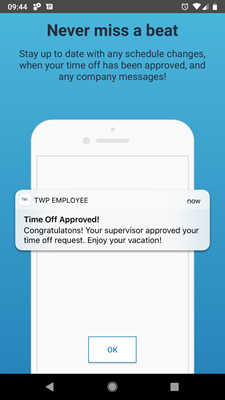
When installing, the app will remind
you about notifications.
With the mobile app, you can receive notifications for the following events:
- Time off request approved/modified/denied
- Company messages from the timekeeping system.
- "Forgot to clock in" reminder
- Schedule Published
- Shift added/modified/removed
- Open shift becomes available
- Schedule change/remove request decision
All these notifications are dependent on your company's configuration.
If you would like to disable these notifications:
- Select Settings from the "three-dot" menu at the top right.
- Choose Manage Notifications.
- Disable Show Notifications.
Location Services
The next initial screen asks if you want to enable location tracking. This is for employers that a) allow employees to clock in and out via the mobile app and b) use our geolocation services. You can skip this screen if neither are required by your employer.
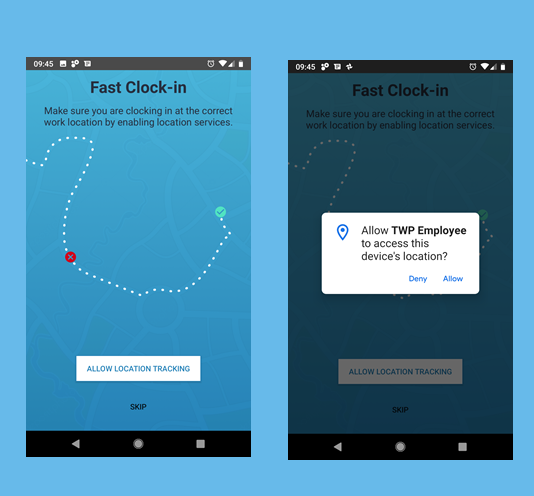
If your employer requires location data with your mobile punch, you need to
allow the app to access your device's location services.
If you need to change the Location Services settings after initial setup:
- Access your device's Settings.
- Go to Apps & Notifications or equivalent setting on your device.
- Choose TWP Employee.
- Select Permissions or equivalent setting on your device.
- Select Location and choose to either Deny or Allow.
NOTE: These steps can vary based on your device and version. These steps are based on Android.
Mobile Punch Disabled
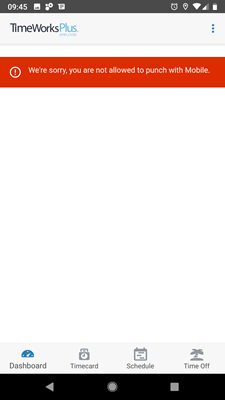
This message means you cannot clock
in via the mobile app.
Mobile punching might not be enabled by your employer. If you see the following message on your app's dashboard, "We're sorry, you are not allowed to punch in with Mobile", it means your employer isn't using this feature.
If You Are Unable to Log In
If you see the following message, "This app is not enabled for your company," then it means your employer's account may not compatible with our latest mobile app. You should speak with your supervisor for further instructions. It may be that you need to use our legacy app, TimeWorksPlus.
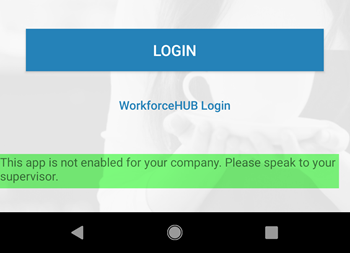
This message means you employer may not be
set up with our latest mobile app.