Add Supervisors to Timekeeping
Supervisor logins for timekeeping are created by the Client-level user (this is usually a manager or admin). A supervisor login is different from a client login in that it can be customized with a limited view of employees and a set of permissions. This article explains the basic steps for creating a supervisor's account.
For a video tutorial on setting up supervisors, please see Login Maintenance - Basic Supervisor Setup.
Create the Supervisor Login
The first step is to generate a login and password for your supervisor along with some basic information.

Add a new login in Login Maintenance
- Click Maintenance Menu ⇒ Login Maintenance.
- Click Add New Login.
- After clicking Add New Login, you may see a radio button instructing you to select Supervisor or Client. Choose Supervisor. If you don't see the "Client" option, don't worry and just advance to the next step.
- Fill in the New Login and Password information. Passwords must be 8 characters in length and contain 2 character types (i.e. letter and number).

Logins for supervisors need to be unique across our system
- Fill in the First Name, Last Name, Phone and Email information. Adding an email is important if you want the supervisor to receive emails regarding time off requests.
- Click Save.
IMPORTANT: If you receive a pop-up explaining that the login name has already been taken (as in the image below), try adding a number or your company's initials to the login name.
Linking to an Employee Record
If the supervisor is going to be using the Employee Portal, it is suggested that you link their manager login to an employee record. That way, they can access the Employee Portal directly through the manager app.
This is done after you have saved the supervisor's login and password and you are taken to their configuration page. It also requires the supervisor has a record in Employee Setup with a matching name and/or email address.
To link the manager's employee record:
- Locate the section on the supervisor configuration page titled Connect this Manager to their Employee Record and check Select employee record.
- The system will pre-select a matching employee using the name and email.
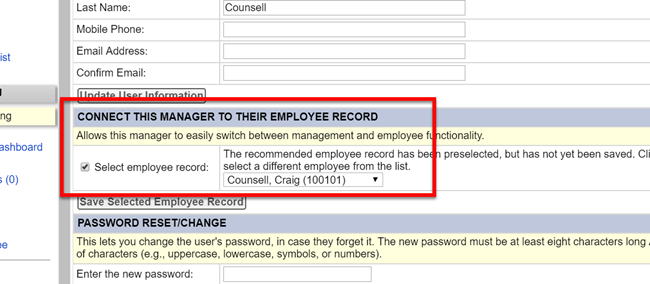
If the pre-selected employee is incorrect, you can use a dropdown to select the correct employee.
- Click Save Selected Employee Record.
For more on this feature and how it works, you can watch this video:
Set the Employee Visibility
After you have saved the login and password, the next step is to define which employees the supervisor sees. This is based on the “Supervisor Account Employee Visibility.”
If you are also using “Time Card Approvals,” you can also select which time cards the supervisor can approve.
Employee Visibility Options
This brief list explains the options available for configuring the employee visibility.
- All active employees will show all current employees. When viewing historical time cards, supervisors will still see terminated employees during periods in which they were active.
- All employees including inactive shows current employees and employees past their separation date.
- Specific employees - A checklist of employees will appear where you can handpick the employees the supervisor will view. If you have a large employee list, a dropdown will appear which can filter the list by your Employee Groups.
- All employees in group(s) - If you have created any Employee Groups, you can select a group for the supervisor's visibility. Only one group can be assigned to a supervisor.
- Select by criteria - This method bases the visible employees on data from Employee Setup. You determine the criteria (such as a department or location) and the system will evaluate the employees and set the visibility.
Select By Criteria Examples
Example: For each employee, include if Department = Operations
Will only allow the supervisor to view former and current employees who have “Operations” entered in their Department field in Employee Setup.

Configuring a Supervisor to only see employees in the Operations
Department
Example: For each active employee, include if Supervisor = Tom Reed
Will only allow the supervisor to view current employees who have “Tom Reed” entered in the Supervisor field of Employee Setup.

By using the Supervisor criteria, the system chooses employees based on the value in Employee Setup.
Example: Filter by Multiple Criteria. You can click the "Advanced" button, below the filter, to use multiple levels of criteria.

The Advanced button allows you to add additional criteria to the filter
In the example pictured here, the filter will look for employees at the Hailey location who work in Hardgoods or Clothing.

An example of advanced filtering. The "Advanced Custom Selection Help" provides an explanation of this feature.
To learn more on how this advanced filtering works, click the Advanced Custom Selection Help link or watch our tutorial video.
Time Card Approval Sub-Filtering
There is a second set of filters in this section dedicated to creating a subset of employee time cards that the supervisor can approve. If the supervisor has to approve all their visible employees' time cards, leave this filter set to "All Active Employees".

The indicated filter is for designated thing time cards the supervisor has to approve
Save the Settings
Once the visibility settings are complete, click Update Employee Visibility Settings.

After editing or configuring the visibility settings, you have to click the "Update" button
Supervisor Permissions
Next, determine which permissions the supervisor will have access to from the list of options in the “Supervisor Account Permissions.” Supervisor Account Permissions selects which features the supervisor can use.
- Can See Wages will show pay rates and wage data (if enabled) for the supervisors selected employees.
- Can Edit Punchesallows them to alter their employee time cards and, if used, edit their schedules.

Selecting the features
a supervisor can use
- Can Access Employee Setup will give the supervisor the ability to add new employees or change existing employee information. If unchecked, the supervisor will not be able to view Employee Setup.
- Can Edit/Delete Unmatched Punches will allow the supervisor to use the Unmatched Punch feature. These are punches recorded at the clock which cannot be associated with any employee in the timekeeping system. This generally applies only to system’s using wall mounted clocks.
Click Update Permissions to save the settings.